Imageshop administrators can easily update the text displayed under the «Contact us» menu item in the image bank. Here you can add contact details, opening hours, or other important information for your users. It is possible to use different texts for different interfaces if you have multiple portals or languages.
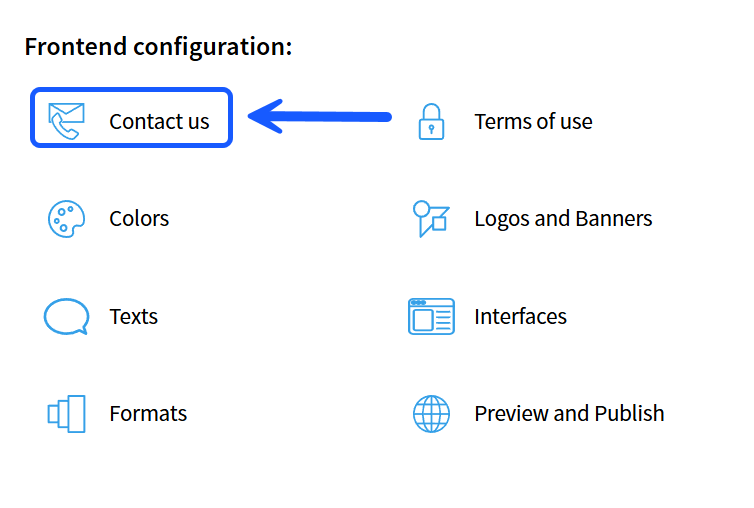
How to find "Contact us"
- Log in to admin5.imageshop.no.
- Click on your name in the top right corner and select «Configuration».
- Click on «Contact us».
Make changes for a specific interface
- Click on the interface you want to edit in the tabs at the top of the page.
- Make your changes in the text fields for the relevant languages.
- Click on «Save changes».
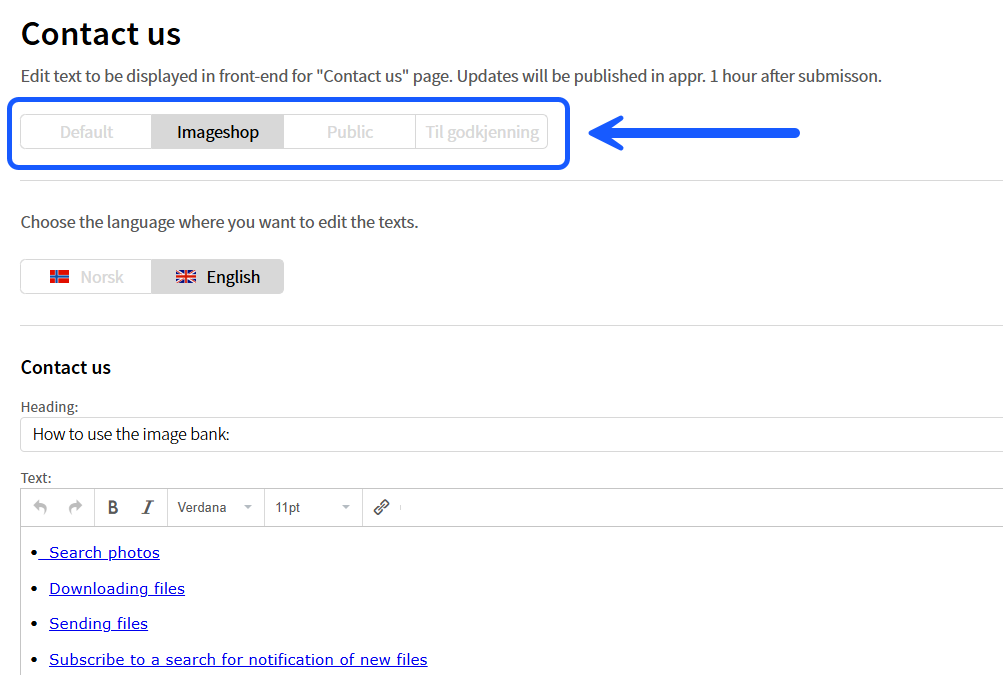
Make changes for all interfaces at the same time
- Click on the «default» tab at the top of the page.
- Make the desired changes in the text fields.
- Select the interfaces you want to apply the text to at the bottom of the page, and click «Copy this interface to».

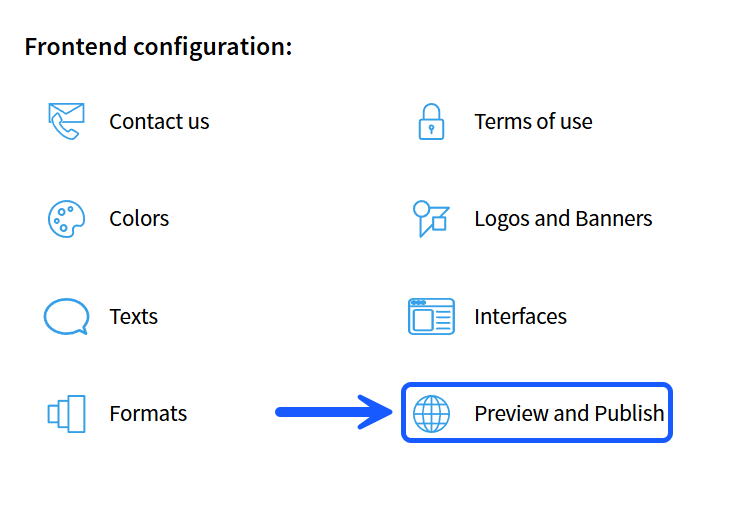
Publish your changes
The changes will not be visible to end users until the interface has been published.
- Go back to the main «Settings» menu.
- Select «Publishing».
- Publish the relevant interface to make your updates live.
Tips
- Remember to update the text in all available languages if your solution is multilingual.
- Use the «Standard» tab if you want to update contact information across multiple interfaces simultaneously to save time.
- Always remember to publish after saving your changes, otherwise the updates will not appear in the image bank.