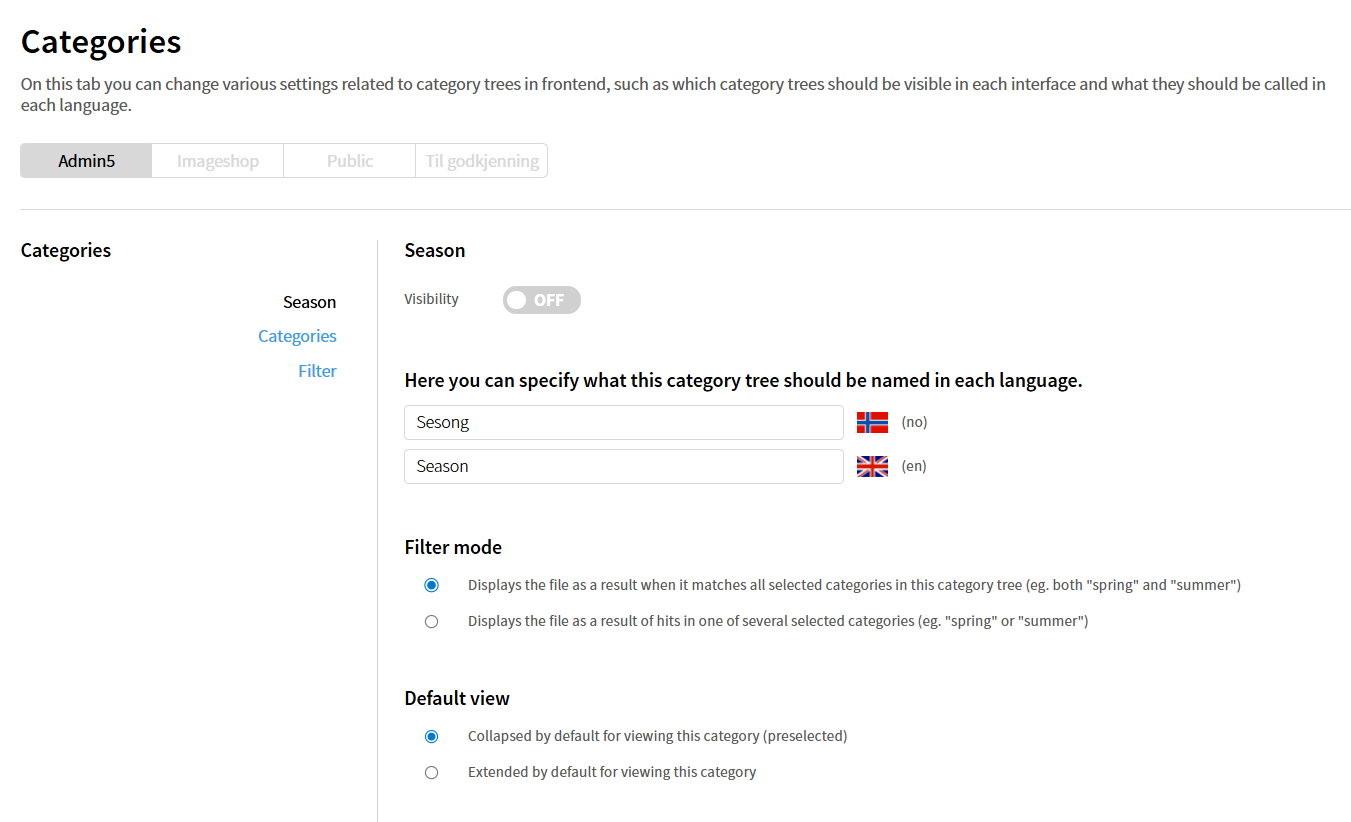
In Imageshop, administrators can customize which category trees are available in the different interfaces. This is a more advanced settings page than the one used when creating categories. Here you can, among other things:
- change the order of category trees
- choose which category trees should be displayed in different interfaces
- decide whether filtering should work as “AND” or “OR”
- choose whether category trees should be expanded or collapsed by default in the filter overview
If you have multiple portals or languages, the settings can be customized individually for each interface.
How to find the category settings
- Log in to admin5.imageshop.no.
- Click your name in the top-right corner and select “Configuration”.
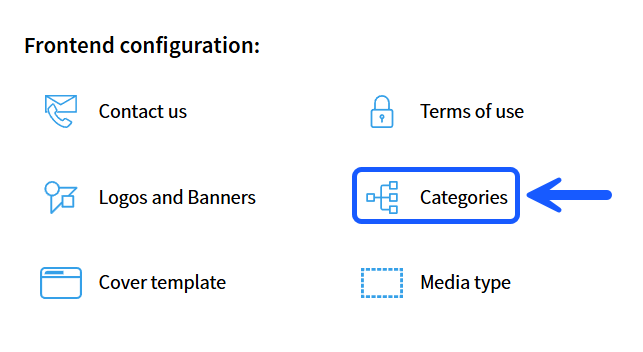
- Click “Categories”.
Make changes for a specific interface
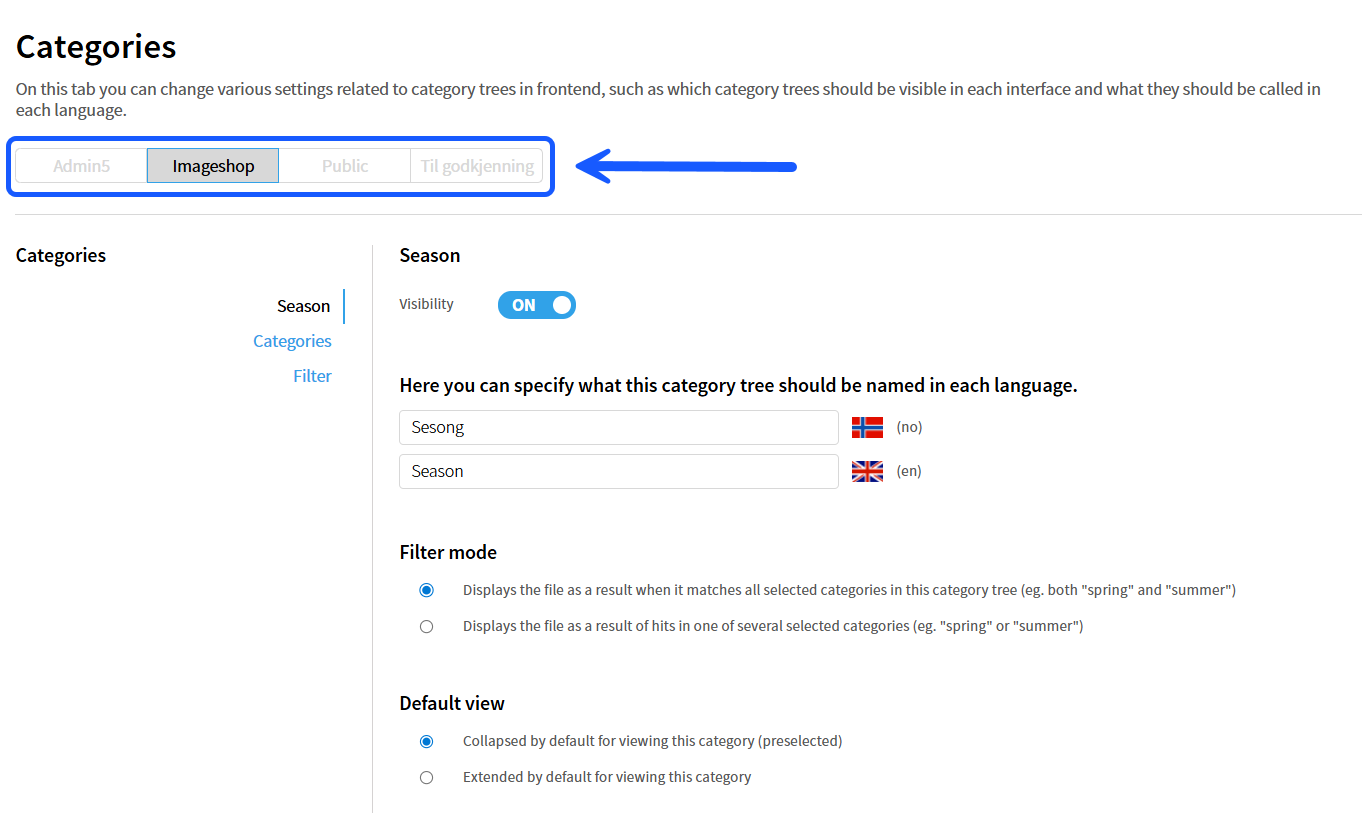
- Select the interface you want to edit using the tabs at the top of the page.
- Make the desired changes in the category configurations.
- Click “Save changes”.
Copy category settings to multiple interfaces
- Select the interface containing the settings you want to copy.
- Click “Copy current category to”.
- Select the interfaces you want to copy the settings to.

Publish the changes
The changes will not be visible to end users until the interface has been published.
- Go back to “Configuration”.
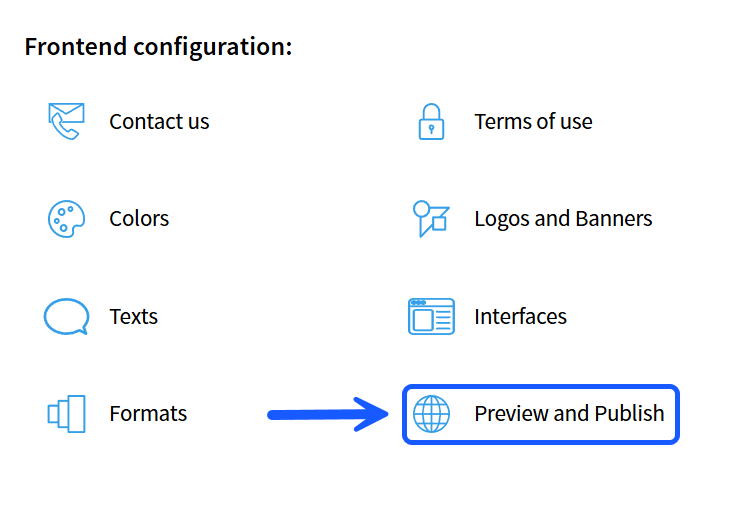
- Click “Preview and Publish”.
- Publish the relevant interfaces.
Tips
- Use clear category tree names to make filtering easier for users.
- Remember to update names in all languages if your solution is multilingual.
- Use the tabs at the top of the page to manage settings for each interface.
- Remember to publish after making changes, otherwise the updates will not be visible to users.