When a file is deleted in Imageshop, it is first moved to a recycle bin. It is kept here for 30 days before being permanently deleted automatically. This gives you the opportunity to restore files that have been deleted by mistake. Deleted files stored in the recycle bin consume your total storage space until they are permanently removed.
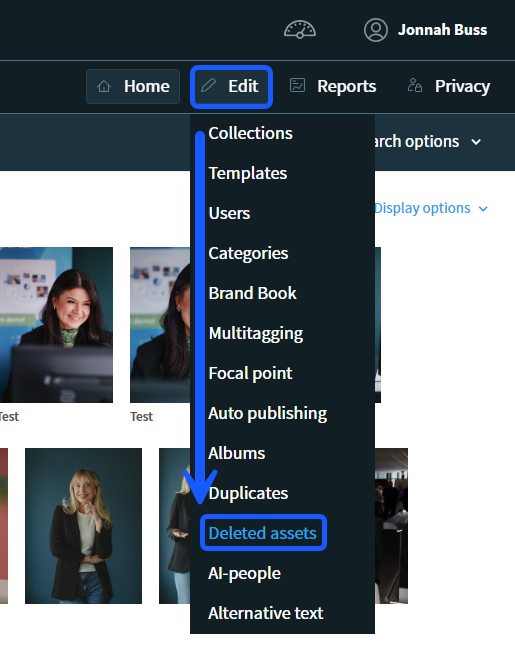
How to find deleted files
- Log in to the administration panel via admin5.imageshop.no.
- Go to the main menu and select «Edit».
- Click on «Deleted assets».
Handling individual files
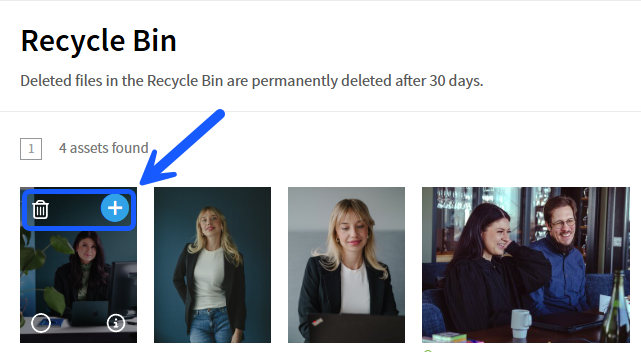
You can easily restore or permanently delete a single file by using the icons that appear in the corners of each image card when you hover your mouse pointer over them.
Handling multiple files simultaneously
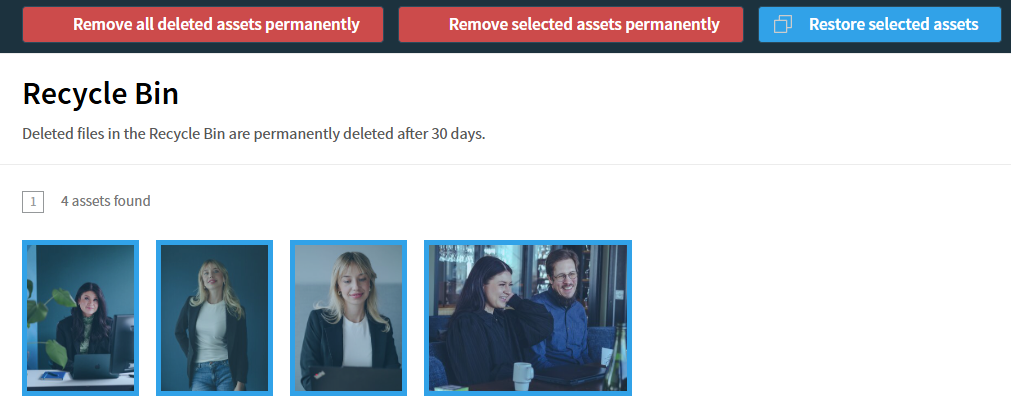
To process multiple files at the same time, check the selection boxes on the images you want to modify. Then, use the action buttons that appear at the top of the page:
Emptying the entire recycle bin
If you wish to free up storage space immediately, you can empty the entire recycle bin by clicking the «Remove all deleted assets permanently» button. All files currently in the overview will then be permanently deleted and cannot be recovered.